Shopify stores often miss a massive opportunity: optimized product pages rank for hundreds of long-tail keywords and deliver high-intent traffic. A buyer searching “eco-friendly yoga mats with cork base” isn’t just browsing. They’re ready to buy.
The problem is most product pages are written for Shopify’s admin, not Google. They lack structure, depth, and keyword focus. And if your product descriptions are thin or generic, search engines have nothing to rank.
This guide walks you through every lever you control on a Shopify product page: titles, descriptions, images, URLs, schema markup, internal linking, and more. Implement these changes and you’ll capture organic traffic your competitors are missing.
Title Tags and Meta Descriptions: Your First Impression
Your title tag appears in Google search results, browser tabs, and social shares. It’s the single most important on-page SEO signal. Yet most Shopify stores use thin, non-descriptive titles.
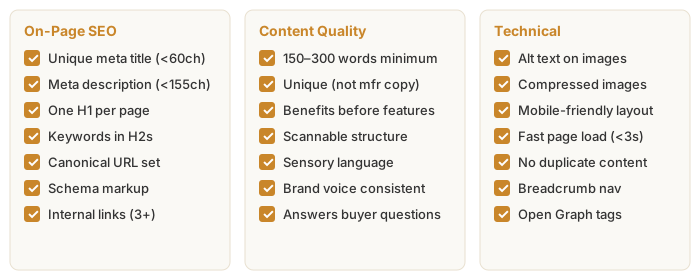
What most stores do: “Blue T-Shirt” or “Product Name | Store Name”
What you should do: Include your target keyword, a benefit or descriptor, and brand. Aim for 50-60 characters so it displays fully on desktop and mobile.
Better title formula: "[Descriptor] [Product] | [Benefit] | [Brand]"
Example: "Organic Cotton T-Shirt | Breathable, Sustainable | ACME Co."
In Shopify, the title tag is pulled from your product title in the admin. Go to Products, edit the product, and update the title field. If you want a different title for SEO than your store display, use a custom meta title in the theme’s product template (via theme code editor, usually in the product.liquid file).
Meta description: This 150-155 character summary appears below your title in search results. Google rewrites it sometimes, but a good one can lift click-through rates by 20-30%.
Meta description formula: "[Benefit/Feature] + unique detail + CTA"
Example: "Soft organic cotton tee in 12 colors. Carbon-neutral shipping, 30-day returns. Shop now."
In Shopify, add a meta description in Products > Edit Product > Search Engine Listing (SEO section). If you don’t write one, Google uses your product description.
Product Descriptions for SEO
A product description serves two audiences: buyers and Google. A good one answers customer questions and signals topical authority to search engines.
Length: Aim for 200-400 words. This is enough to cover features, benefits, materials, use cases, and comparisons without rambling. Thin descriptions (under 100 words) rarely rank for competitive keywords.
Structure: Use short paragraphs (2-3 sentences each) and include subheadings (h3 tags) for scanning. People skim product pages.
Keyword placement: Include your target keyword in the first 100 words and naturally throughout. If you’re targeting “merino wool hiking socks,” use that phrase once in the first paragraph, once in the middle, and reference related terms (moisture-wicking, temperature regulation, blister prevention).
What to cover:
- What the product is and what problem it solves
- Materials, specs, dimensions
- Unique features that set it apart
- Use cases and ideal customers
- Care instructions or longevity claims
- What’s included in the box
- Comparison to alternatives (if relevant)
Avoid vague language (“premium,” “high quality,” “best”). Instead, be specific: “Grade A merino wool, moisture-wicking, odor-resistant, breathable.”
If you’re writing descriptions manually, this takes time. If you’re scaling, consider automating with AI tools that understand your brand voice.
Image Optimization: Alt Text, Filenames, Compression
Google can’t see images. It reads alt text, filename, surrounding text, and file size to understand what they show. Optimized images boost rankings and accessibility.
Alt text: Write 8-12 words describing the image. Include your target keyword if it fits naturally, but prioritize description over keyword stuffing.
Good alt text: “Blue merino wool hiking socks with reinforced heel and toe, displayed on a hiking boot”
Bad alt text: “Merino socks” or “image123”
In Shopify, when you upload a product image, click the gear icon and fill the “Alt text” field. Do this for every product image.
Filenames: Rename images before uploading. Use hyphens to separate words and include your target keyword if relevant.
Good: “merino-wool-hiking-socks-blue.jpg”
Bad: “IMG_9283.jpg” or “product.jpg”
File size: Large images slow page load. Compress before uploading. Aim for under 200KB per image. Tools like TinyPNG or ImageOptim do this losslessly. Shopify compresses images automatically, but smaller uploads = faster CDN delivery.
Image format: Use WebP if your theme supports it (smaller, faster). Otherwise, JPG for photos, PNG for graphics with transparency.
Multiple angles: Include 3-5 product images from different angles. This reduces bounce rate and signals to Google that the page is comprehensive.
URL Structure: Clean, Descriptive, Keyword-Rich
Your product URL is a weak ranking signal but a strong usability signal. Clean URLs are easier to share, remember, and crawl.
Shopify generates URLs automatically from your product title: yourstore.myshopify.com/products/blue-merino-wool-hiking-socks
This is good. It’s descriptive, lowercase, hyphenated, and keyword-rich. Don’t over-complicate it.
URL best practices:
- Keep it under 75 characters
- Use hyphens, not underscores or spaces
- Include your primary keyword
- Avoid numbers or dates (they age fast)
- Don't change URLs after publishing (it breaks backlinks and rankings)
- If you must change a URL, set up a 301 redirect
To customize your product URL in Shopify, go to Products > Edit Product > search engine listing, and update the URL slug. Keep changes minimal once the page starts ranking.
Structured Data and Schema Markup
Schema markup tells Google what your content is about in a machine-readable format. For product pages, it powers rich snippets in search results (ratings, price, availability).
Most Shopify themes include basic schema markup automatically. But you can enhance it.
Key schema types for product pages:
- Product schema: Name, description, image, price, availability, brand, sku
- AggregateRating schema: Star rating, number of reviews (pulls from Shopify reviews if your theme supports it)
- Offer schema: Price, currency, availability (in stock, out of stock, pre-order)
Check if your schema is working: Use Google’s Rich Results Test. Paste your product URL, and Google shows you what schema it detected. If you see “Errors,” your theme’s schema is broken and needs fixing via theme code editor.
Schema best practices:
- Ensure reviews are real (fake reviews tank rankings and break trust)
- Keep price and availability current (stale data confuses search engines)
- If you have variants (sizes, colors), schema should reflect all prices and availabilities
- Test schema after any theme update
To customize schema, edit your theme’s product.liquid file in the theme code editor. Look for {% schema %} sections. Most Shopify themes handle this, but if yours doesn’t, a developer can add it.
Internal Linking on Product Pages
Internal links pass authority and help Google understand your site structure. On product pages, strategic internal links guide visitors to related products and content.
Link to:
- Related products in your catalog (up-sells, cross-sells, alternatives)
- Category pages that feature this product
- Blog posts that mention or review similar products
- Collections that group products thematically
Example: “If you like this hiking sock, check out our complete guide to hiking gear or browse other performance socks.”
In Shopify, add internal links in the product description using the description editor’s link tool. Or customize your theme’s product.liquid template to include hardcoded related product sections.
Internal linking tips:
- Use descriptive anchor text ("hiking socks" not "click here")
- Link to high-value pages: category pages, collections, popular products, blog posts
- Limit to 3-5 internal links per product page (too many dilute link juice)
- Use nofollow sparingly (only for untrusted or sponsored links)
Page Speed Considerations
Page speed is a ranking factor and a conversion killer. A one-second delay can drop conversions by 7%.
Run a speed test: Google PageSpeed Insights. Enter your product URL, and Google shows you Core Web Vitals (loading speed, interactivity, visual stability).
Common Shopify product page speed issues:
- Heavy theme code: Some themes load dozens of unused scripts. Audit your theme settings and disable features you don’t use.
- Unoptimized images: Compress and use WebP (mentioned above).
- Slow apps: Each app adds JavaScript. Uninstall apps you don’t need. Check your app performance in Shopify Analytics.
- Third-party embeds: Avoid embedding YouTube, TikTok, or Instagram feeds directly on product pages. Use lazy-loading or links instead.
- Custom fonts: Use system fonts or limit to 1-2 custom fonts. Google Fonts is free but can slow load.
Shopify’s CDN handles image delivery, but your theme and apps determine the rest. A fast, clean theme beats a slow one with bells and whistles.
Speed targets for Shopify:
- Largest Contentful Paint (LCP): under 2.5 seconds
- Cumulative Layout Shift (CLS): under 0.1
- First Input Delay (FID): under 100ms
Handling Duplicate Content: Variants, Collections, and Consolidation
Shopify URLs for variants, filters, and collections can create duplicate content issues. Google penalizes thin duplicates, so you need to manage this.
Variants (size, color, etc.): Shopify doesn’t create separate URLs for variants by default. One product page covers all variants. This is correct. Don’t create separate pages per variant; it fragments your ranking power.
Collections: If a product appears in multiple collections, each collection URL shows the same products. Use canonical tags and collection indexing to control this.
In Shopify, go to Collections > Edit Collection > SEO > Search Engine Visibility. Set to “Visible” for important collections (like “New Arrivals” or “Best Sellers”). Set filters or minor collections to “Hidden” to prevent duplicate content in search results.
Filter pages: URL filters like ?color=blue&size=m create thousands of duplicate pages. In Shopify, go to Online Store > Settings > Search Engine Listing and configure your theme to use facets instead of query strings, or disable indexing of filtered pages entirely.
Canonical tags: If you can't avoid duplicates, use canonical tags. In your theme's product.liquid, ensure the canonical tag points to the main product URL without filters or collection parameters.
Example: <link rel="canonical" href="{{ product.url }}" />
Consolidation: If you have genuinely duplicate products (same item listed twice by mistake), delete the weaker one and 301-redirect it to the stronger one. Shopify auto-redirects deleted products, so this is safe.
Monitoring Rankings and Performance
SEO is ongoing. You need to track what’s working.
Tools you need:
- Google Search Console (free): See search queries that drive traffic, track impressions and clicks, spot crawl errors, submit sitemaps. Add your Shopify domain and verify ownership.
- Google Analytics 4 (free): Track organic traffic by product page, bounce rate, conversion rate, time on page. Shopify integrates this natively.
- Rank tracking (paid, optional): Tools like Ahrefs, SEMrush, or Moz track rankings for your target keywords over time. This tells you if changes move the needle.
Metrics to track:
- Organic sessions per product
- Average position in search results (Search Console)
- Click-through rate from search results
- Bounce rate (are visitors finding what they expect?)
- Conversion rate from organic traffic (the goal)
- Top product pages by traffic (double down on what works)
Set a baseline now. After implementing changes above, check these metrics in 4-6 weeks. Google takes time to re-crawl and re-rank, but you should see improvement.
The Complete Optimization Checklist
Here’s what to do this week:
- Audit your top 20 product pages in Search Console (which keywords drive traffic?)
- Write or rewrite titles and meta descriptions for those pages
- Expand product descriptions to 200-400 words with keywords and benefits
- Add alt text to every product image
- Rename image files with descriptive keywords
- Compress images to under 200KB each
- Check your schema markup with Google Rich Results Test
- Add 2-3 internal links to each product page
- Run Google PageSpeed Insights and fix any critical issues
- Configure collection visibility to prevent duplicate content
- Set up Google Search Console and Analytics if you haven’t already
This checklist is comprehensive but doable in a week for your top performers. Then systematize: apply the same standards to new products before publishing. Use product description templates to standardize your approach and maintain quality across all new products.
If writing and optimizing hundreds of product descriptions feels like a bottleneck, automation can help without sacrificing quality. The best SEO-optimized descriptions match your brand voice and speak to your customers, not just search engines.